

There are two places where timezone can be very important.
Viewing your Timeline or Event Explorer of recorded events
On Screen Display (OSD) that is on the camera live view image
Setting the timezone for your recorded events
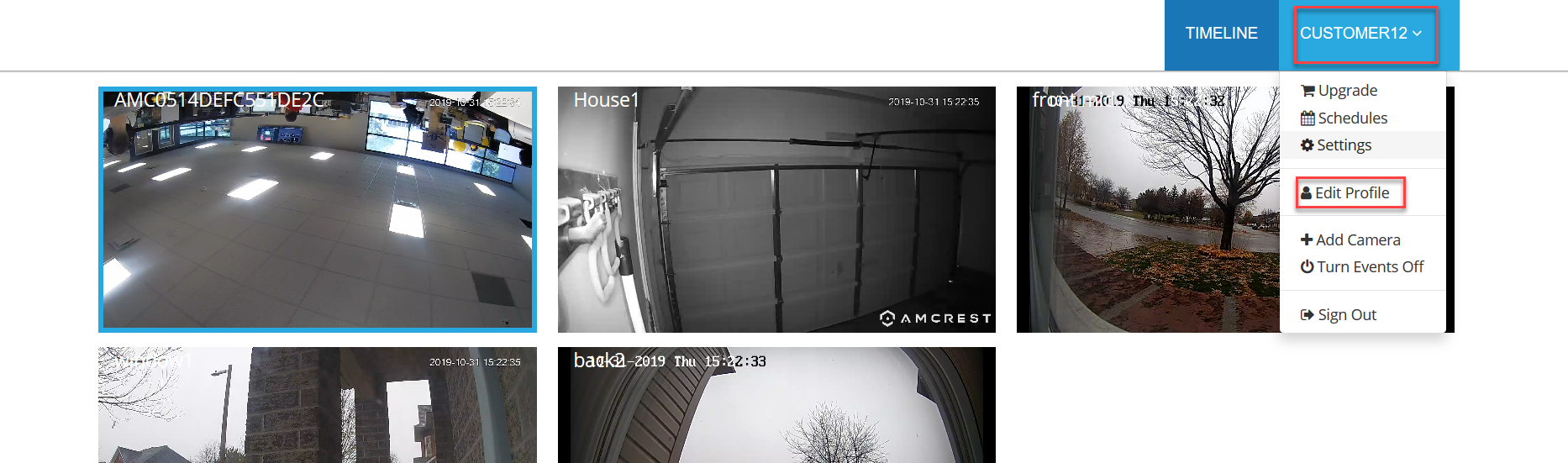
The time will always be offset by your timezone. When you're viewing any recorded media in your Timeline or Event Explorer, you need to setup your timezone. You can either set the timezone in your web customer portal or using the mobile app. On web log in to the timeline view, select the drop down at the top right (this is your name) then select “Edit Profile”:
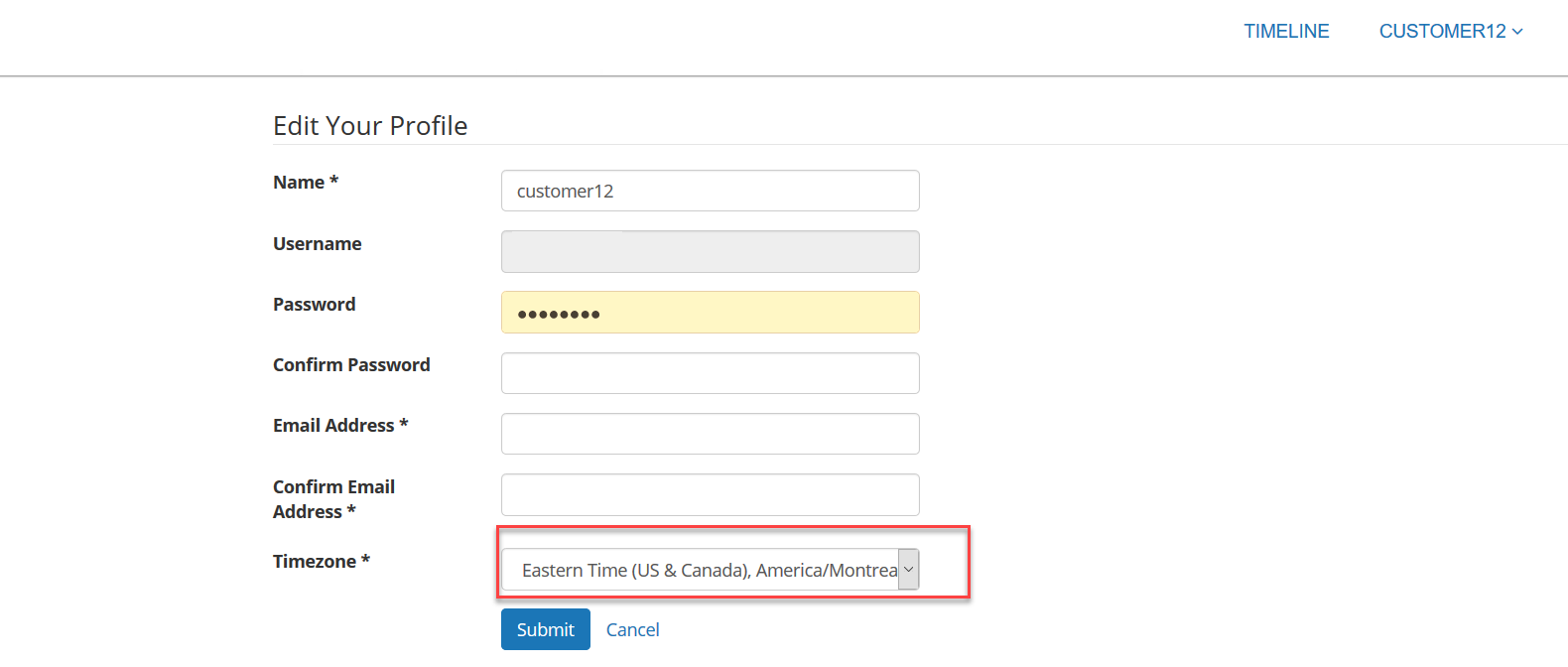
Select the correct time zone from the drop down menu highlighted below and click “Submit”:
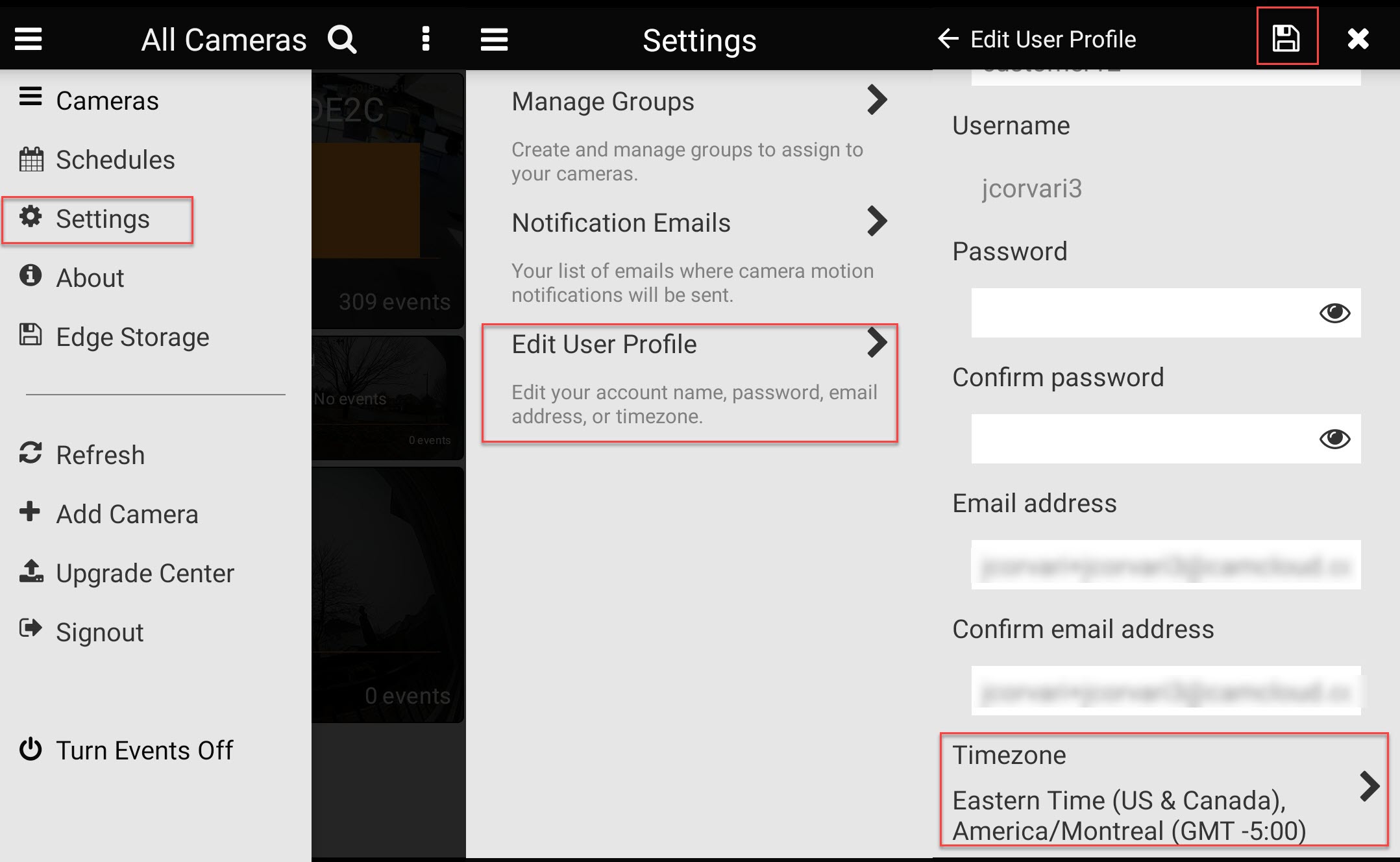
On mobile you can do the same thing. When logged into the mobile app, select the hamburger icon at the top left, then select “Settings" -> “Edit User Profile”. Scroll down to the bottom in the Edit User Profile selection and you can select your Timezone in the “Timezone” field. After selecting this click the save icon at the top right:
Setting the camera on screen display (OSD)
If you want to see the time shown on the actual camera image you need to set the OSD.
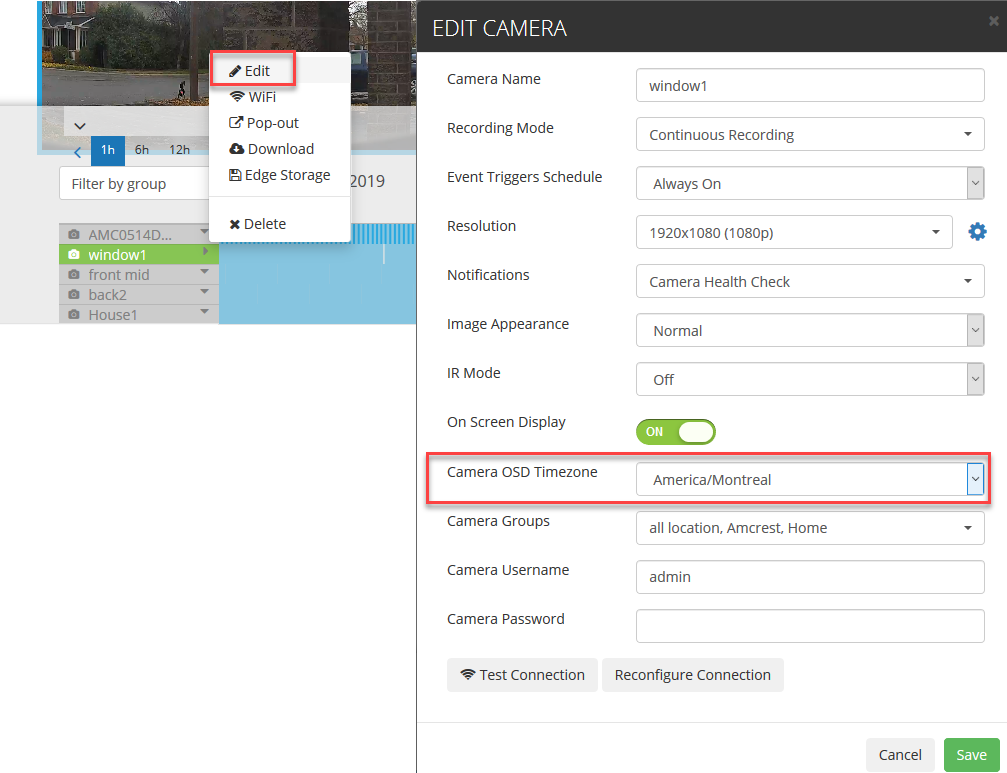
This can be set via the edit camera menu in the timeline (web or mobile) or Admin Portal (Business plans only). Make sure On Screen Display is turned ON:
If OSD is not available, you can set the OSD by going to the camera interface. Consult your camera's documentation for instructions.