

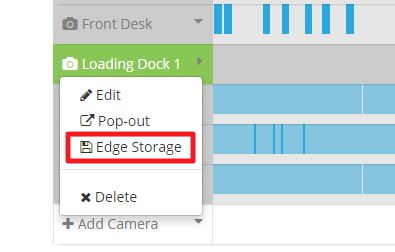
Select the camera with an SD card installed from your camera list and select the dropdown arrow. Select "Edge Storage" from the list.
Redundant Storage: Mount the SD Card, make sure it is in the proper format and select a recording mode (Motion or Continuous, note that Motion is strongly recommend for card longevity). Some camera models will also allow you to select a resolution that can differ from your cloud storage. If the option to select a resolution for the SD card isn't available in our interface it can still be changed in the camera's own interface if the camera model allows for a different resolution on the SD card than the main stream.
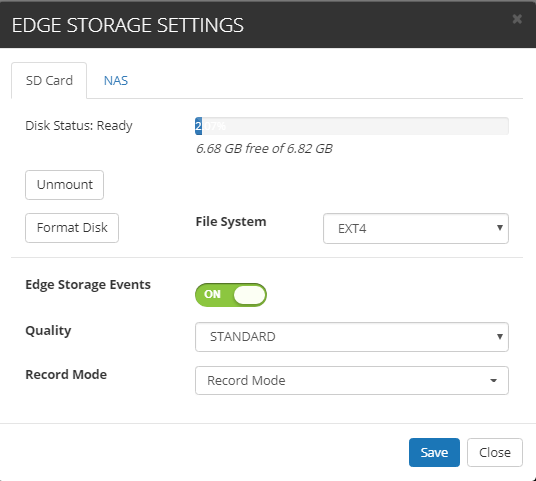
Disk Status:
Needs Formatting - when formatted in unsupported format.
Ready - SD card is mounted and ready to use. A usage indicator will show you the amount of available storage space on your card.
No Disk - the disk may be inserted incorrectly or not at all
Unmount/Mount: if you would like to unmount the SD card, select this option. The button should change to "Mount" and the Disk Status will change to "Unmounted". Select Mount again to ready your disk for capturing motion events.
Format Disk: select the "Format Disk" button to change the disk file system. This will erase any current recordings. Note it's absolutely necessary to format the SD card especially if it was used for something different. Every camera model has their own format.
Edge Storage Events: Setting to ON will allow all the events to be uploaded to the SD Card and the Cloud concurrently.
Quality: If your camera supports it, you can specify a different quality value for the SD card events.
Record Mode: If your camera supports it, you can either capture Continuous Recording or Motion detection events only. Note that Advanced Edge Analytics (such as tampering, face detection, etc.) are NOT supported for SD cards.
Camera Model Support
Axis:
Full support.
Amcrest:
Support coming to select models soon!
Speco:
Support coming to select models soon!
Milesight:
Support exists outside of the SD card menu. Since Milesight has a direct connection capability you can tunnel right into the camera interface remotely and setup the SD card and view recordings.