

If your camera is setup with continuous recording you can create a timelapse to speed up the recording and help you review footage over a longer period of time.
The timelapse is limited to your retention time and is only available on the web.
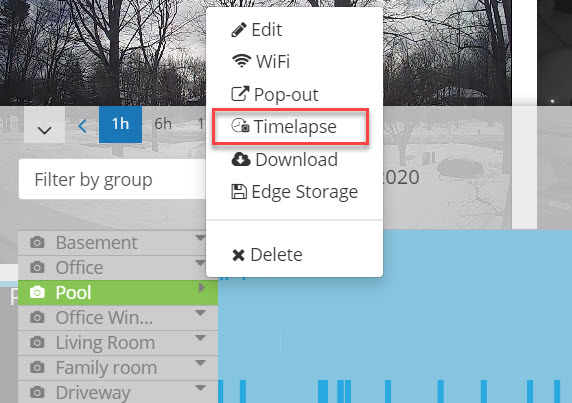
Select the menu of your camera:
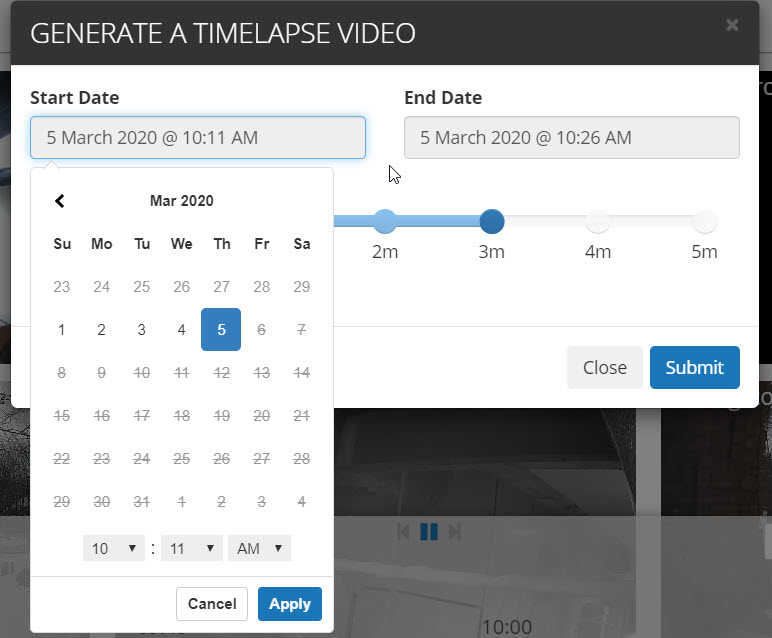
Now you need to select the start/end date of the timelapse you want created. Then select the length of the timelapse video. It can range from certain fixed amounts of 10 secs all the way up to 5 mins.
Once you've selected the range, you'll get a notification of where you can download that timelapse video.
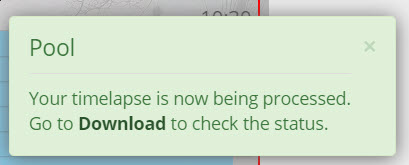
Click the "Download" link to go to the download manager. Alternatively you can just go the the Downloads page from your main menu.

It can take a few minutes to create your video and it will be updated as soon as it's ready.

Click the Download link to watch your video using any player capable of mp4 playback.
Tips:
The shorter period you select the slower the timelapse will be. This will help you review a very specific incident without missing any important scene changes.
If your camera has OSD (on screen display) with the date/time, turn that on. It helps tremendously when reviewing video to know the time that something happened.