

Camera Health Check (CHC) is an automated camera test feature that checks to ensure your cameras are online and functioning.
What does CHC do?
When enabled CHC will periodically run a network test on your camera to ensure it can be accessed
The test is very similar to the Network Test that's run when you first added your camera
If there's a test failure, you will be notified by mobile or email notification, depending on your preference
After a camera fails a test, the user will also be notified when it passes the next test
If a number of tests fail a final failure message will be sent and you won't receive any further notices
How to enable CHC
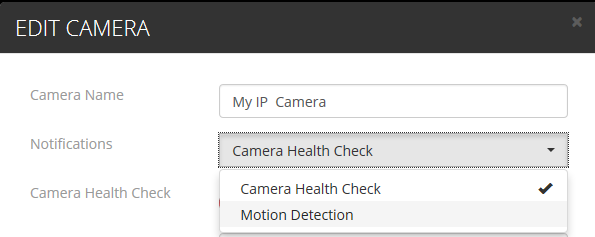
CHC is automatically enabled. If you wish to be notified when a test fails you can simply add CHC to your email notification list. By selecting this option a notification will be sent to your mobile app and to the email provided under the My Account -> Settings -> Notifications.
Failed test and notifications
When a CHC test fails, a notification will be sent by email or to your mobile app. The camera will then be assigned an "Alert" state to indicate there's a failed test.
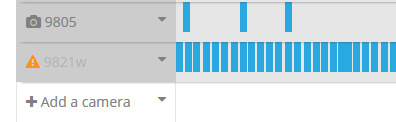
The camera can be removed from this state by:
A successful CHC test (on the next scheduled test), or
A successful manual retest, which can be run by selecting Edit Camera -> Test Connection.
Once either of these two tests pass, the camera will return to its normal healthy state. Note: It can take a few minutes before it clears the alert.
A user will also be notified when a camera in failed state passes the next automated health check.
Types of notifications
<Camera Name> is Offline - Your camera is no longer functioning properly. It doesn't necessarily mean everything stopped working. Either the Live View stopped working and/or the events are not coming in. A list of reasons will be given in the notification.
<Camera Name> is Online - No action required here. We ran another test and the camera is back in working order.
<Camera Name> is Unstable - This notification is only for cameras that are in continuous record mode. We identified that the stream is unstable. This again could be several reasons and a list will be given in the notification.
Reasons
In every notification you'll get a list of "reasons" for the failure. Different reasons include:
Camera connection - The cloud connection is failing. Typically a power or internet issue
Continuous stream unstable/failed - The continuous stream is cutting out too often
HTTP port forwarding - HTTP port used is no longer open
RTSP port forwarding - RTSP port used is no longer open
Username/password - Credentials are no longer working
Camera High Bitrate - Generic cameras only, they are using a bitrate that is too high. We stop the camera from streaming.
Analysis Limit - You've reached the AI limit
Camera Health Check History
In addition to what you see with each camera in the Timeline, you also get a history of all events for every device.
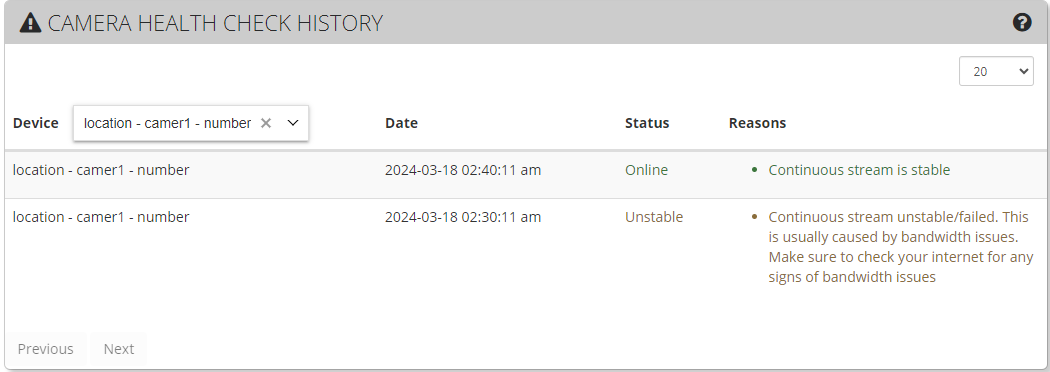
This is a great way to monitor the health of any device and might give you clues to issues such as the internet connection and bandwidth.